
Free Fire OB55 FPS Settings: Best for Smooth Gameplay
Free Fire’s OB55 update brings balance changes, new content, and the usual performance expectations that players care about most during ranked matches. Smooth, consistent frame rates matter far more than maximum visual quality when every millisecond of aim tracking and movement response can decide a fight. Whether you play on a budget phone or a higher-end device, the right combination of graphics options, High FPS mode, and system-level habits delivers the stable experience needed for reliable drag shots, quick turns, and clean close-range engagements.
The core principle stays simple across every device tier: prioritize a locked, playable frame rate over prettier textures or shadows. Stuttering or sudden drops feel worse than a lower but steady number. OB55 continues the performance tools introduced in earlier updates, including High FPS options and the Experimental Frame Rate Boost on supported devices. Combining these with careful graphics choices and background management produces the best results.
Graphics Settings That Maximize FPS
Open the in-game settings menu and go to the Display or Graphics section. The most important choices sit here.
Set Graphics Quality to Smooth on nearly every device. Smooth reduces the load on the GPU dramatically while still providing clear visibility of enemies, loot, and the environment. Standard can work on mid-range phones with 4–6 GB of RAM if the device stays cool, but Smooth remains the safer default for competitive play. Ultra or higher settings almost always introduce frame drops during fights, smoke, or multiple players on screen, especially on phones with 4 GB of RAM or less.
Turn High Resolution off. This option increases texture detail at a noticeable cost to frame rate and heat. Most players gain more from the extra frames than from sharper distant objects.
Disable Shadows or set them to the lowest available option. Real-time shadows and advanced lighting effects consume significant processing power. Turning them off frees resources that the game can redirect toward maintaining FPS during intense moments.
Set Auto Scale to Off once you have chosen a stable graphics preset. Auto Scale can dynamically lower quality in demanding scenes, which sometimes creates inconsistent feel. Manual control gives more predictable performance.
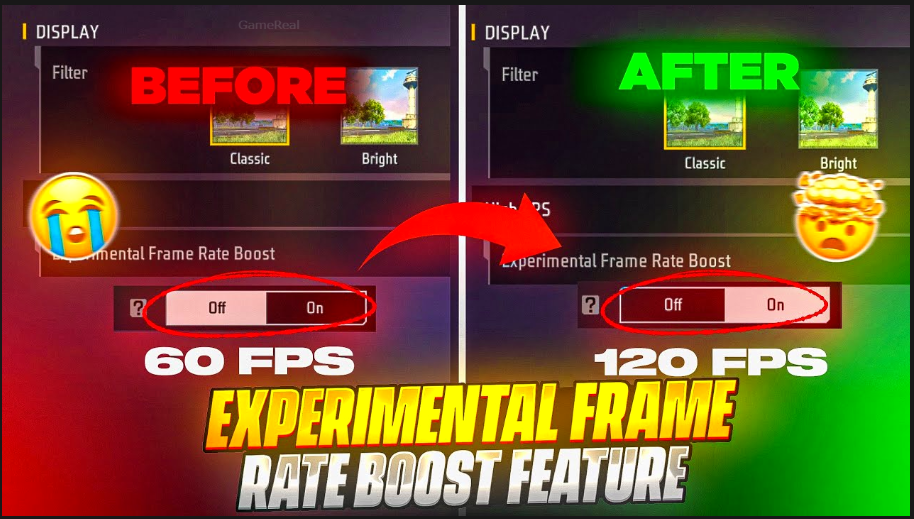
If your device supports it, enable High FPS and select the highest stable option—usually High or the equivalent of 60 FPS. On phones that offer Experimental Frame Rate Boost, turn that on as well and test it. The boost can smooth out frame delivery further, but monitor heat and any added input delay. If the phone becomes noticeably warmer or the touch response feels sluggish, disable the experimental option and stay with the regular High FPS setting.
Visual effects, vehicle effects, and certain lobby animations can also be reduced or set to Classic where the option exists. These changes free additional resources without affecting core gameplay visibility.
Settings by Device Category
Low-end devices (2–3 GB RAM, older chipsets, 60 Hz screens) should stay strictly on Smooth graphics, High FPS only if it remains stable at 30–45 frames, shadows off, high resolution off, and Auto Scale on if the game still struggles. Close every background app before launching. Expect 25–40 FPS in open areas and slightly lower during heavy fights. The goal is consistency rather than chasing higher numbers that cause thermal throttling.
Mid-range devices (4–6 GB RAM, common in many markets) can usually run Smooth or Standard graphics with High FPS enabled. Shadows stay off or on low. These phones often hold 45–60 FPS when optimized. Enable any available Performance or Game Mode in the phone’s system settings. Keep the experimental boost on only after confirming it does not raise temperatures too quickly.
Higher-end devices (6 GB RAM and above, 90 Hz or 120 Hz displays) still benefit from Smooth or Standard rather than Ultra in ranked play. High FPS and the experimental boost become more reliable. These phones can maintain near-locked 60 FPS with fewer compromises, but heat management remains important during long sessions. Higher refresh-rate screens make the same sensitivity settings feel faster, so players often lower certain sensitivity values slightly for better control.
System-Level Optimizations That Matter
In-game settings alone are not enough. Before every session, clear recent apps and free as much RAM as possible. Free Fire performs best when the device has breathing room. Enable any Game Mode, Performance Mode, or Do Not Disturb features your phone offers. These modes usually prioritize the game, limit background activity, and sometimes adjust thermal behavior.
Developer options can help on Android. Setting animation scales (window, transition, and animator) to 0.5x or off reduces system overhead and makes the interface feel snappier. Force 4x MSAA is optional and can smooth edges, but only enable it if the phone handles the extra load without dropping frames.
Avoid playing while charging during long ranked sessions. Charging combined with heavy GPU use raises temperatures quickly and often triggers thermal throttling that lowers FPS. Keep the phone in a cool environment and consider a simple cooling clip or well-ventilated case if you play for hours.
Network settings also influence perceived smoothness. A stable connection prevents rubber-banding that can feel like lag even when the frame rate is solid. Use a reliable Wi-Fi or mobile data connection and close bandwidth-heavy apps.
How FPS Stability Affects Aim and Sensitivity
A stable frame rate makes sensitivity settings feel consistent. When FPS drops suddenly, the same finger swipe travels a different distance on screen relative to the game world, causing overshoots or undershoots. Players who chase maximum graphics often find their drag headshots become unreliable precisely because the frame time is uneven.
Many community recommendations for OB55 therefore pair Smooth graphics and High FPS with sensitivity values tuned for the resulting feel. Higher General and Red Dot values (often in the 170–200 range on the 0–200 scale) help compensate for any residual touch latency on lower-end devices. On high-refresh screens with locked high FPS, slightly lower values prevent the crosshair from flying past the head. Always test sensitivity changes in the Training Ground after locking in your graphics and FPS options. Adjust one slider at a time by small increments and play several matches before deciding.
Fire button size around 45–55 percent remains common because it allows comfortable vertical drag without covering too much of the screen. HUD layout should keep the fire button, jump, crouch, and gloo wall accessible without forcing awkward finger stretches.
Additional Habits for Long-Term Smoothness
Update the game fully after OB55 goes live so you receive any performance patches Garena includes. Clear the game cache periodically through the phone’s application settings if you notice gradual slowdowns. Keep the device’s system software current as well.
Monitor temperatures during play. If the phone becomes uncomfortably hot, drop graphics one step or disable the experimental boost. Sustained high temperatures shorten battery life and can permanently affect long-term performance.
For players who switch between Free Fire and Free Fire MAX, apply the same philosophy on both clients. The linked progress system means settings philosophy carries over even if the exact menu labels differ slightly.
Putting It All Together
The best FPS configuration for OB55 starts with Smooth graphics, High FPS enabled when stable, shadows and high-resolution options disabled, and background apps closed. Device tier determines how far you can push beyond that baseline. Low-end phones stay conservative for locked lower frame rates. Mid-range phones aim for consistent 45–60 FPS. Higher-end phones lock high frame rates while still avoiding unnecessary visual effects.
Once the frame rate feels steady, fine-tune sensitivity and HUD so that movement and aiming match the smoother response. Practice in Training Ground and Clash Squad before taking the setup into ranked. Small, deliberate changes produce better results than copying a full pro preset without testing.
Smooth gameplay in Free Fire is the product of matching settings to hardware limits rather than forcing maximum options. With OB55, the same proven approach continues to deliver the responsive, reliable experience that lets aim, movement, and game sense shine. Lock in the graphics and FPS foundation first, then build the rest of your configuration on top of that stable base. The result is fewer frustrating frame drops and more consistent performance across every match.