
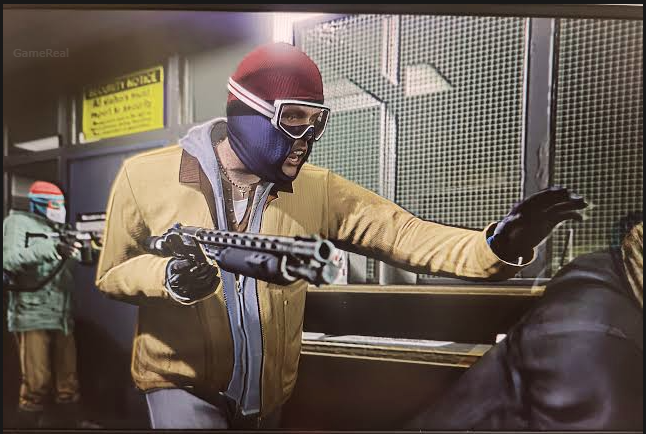
GTA 5 Update 1.73 Fixes PC Launch Crashes
Grand Theft Auto V players experiencing crashes when starting the game have a new fix to check. Rockstar Games updated its official GTA V Title Update 1.73 notes on October 27, 2026, confirming that a launch-crash issue has been fixed on PC Enhanced.
The change is useful for players whose game closes or crashes during startup, but the wording of the patch note matters. Rockstar has not stated that every launch problem has been resolved, nor does the October 27 entry specifically identify PC Legacy as receiving this particular fix.
If GTA 5 was crashing before the update, installing the latest available patch is the first step. If the game still fails to start afterward, players should investigate other possible causes rather than assuming the update has failed or repeatedly reinstalling the entire game.
What Does GTA 5 Update 1.73 Fix on PC?
Rockstar’s official Title Update 1.73 notes contain an entry dated October 27, 2026. Under the PC Enhanced section, the developer lists a general fix for an issue that caused the game to crash upon launch.
This confirms that Rockstar addressed a startup-crash problem. However, the patch notes do not explain the technical cause, identify the exact hardware configurations affected, or provide a list of error codes associated with the issue.
That distinction is important because a game crashing during startup can have several possible causes. A patch may resolve a specific software defect without correcting problems caused by damaged game files, graphics drivers, incompatible settings, or other system issues.
Confirmed details
- Update: GTA V Title Update 1.73.
- Patch-note date: October 27, 2026.
- Platform listed for this fix: PC Enhanced.
- Confirmed change: Rockstar fixed an issue that caused the game to crash upon launch.
- Technical explanation: Not provided in the published entry.
The safest conclusion is that the update addresses a documented launch-crash issue on PC Enhanced. It is not evidence that all GTA 5 startup crashes have been eliminated.
Does the Fix Apply to GTA 5 PC Legacy?
Players should check which PC edition they have before assuming that the update addresses their problem.
GTA V on PC has Enhanced and Legacy editions. Rockstar’s Title Update 1.73 page covers several platforms and both PC editions in its overall title, but individual entries specify which platforms receive particular changes.
The October 27 launch-crash fix is listed under PC (Enhanced). The entry does not explicitly list PC Legacy for this specific change.
That does not prove that Legacy players can never benefit from other fixes in the wider update history. It means only that this particular patch note does not confirm the same fix for Legacy.
If you play Legacy and continue experiencing crashes, do not assume that your edition received this exact correction. Check the current patch notes for your edition and follow the appropriate PC troubleshooting steps.
How to Check Whether GTA 5 Has Updated
Before changing graphics settings or reinstalling the game, make sure your installed copy has received the latest available update.
Rockstar’s general PC troubleshooting guidance recommends launching the game while connected to the internet so that the latest patch can be obtained. The precise update process depends on the launcher used to install the game.
1. Update through your game launcher
Close GTA 5 if it is running, then open the launcher associated with your installation.
- Rockstar Games Launcher: Open the launcher, select GTA V from your installed games, and check whether an update is available.
- Steam: Open your Library, select GTA V, and check its download or update status.
- Epic Games Launcher: Open your Library and check GTA V for an available update or a pending download.
The labels and menus may vary with launcher versions, so use the current interface rather than relying on an outdated screenshot.
Allow any available update to finish downloading and installing. Avoid interrupting the process, and make sure the launcher is not still downloading or verifying files in the background.
2. Restart the launcher and computer
After an update completes, close the game and restart the launcher. If the game still crashes, restart Windows before trying again.
This provides a clean starting point and closes processes that may have remained active during the previous launch attempt.
3. Test the game again
Launch GTA 5 through the official launcher rather than an old desktop shortcut or an unofficial batch file. Observe what happens:
- Does the game reach the main menu?
- Does it close immediately after launch?
- Does it show an error message?
- Does it display a black screen before closing?
- Does it crash only when entering Story Mode or GTA Online?
These differences help narrow down the problem. A crash before the main menu is not necessarily the same issue as a freeze while loading a mode.
GTA 5 Still Crashing After Update 1.73? Try These Fixes
If the game continues crashing after the latest available update, work through the following checks one at a time. Rockstar’s official PC troubleshooting guidance covers game-file verification, graphics drivers, runtime components, and diagnostic logs.
Testing one change at a time makes it easier to identify which action helps.
1. Verify the game files
Damaged or missing files can prevent a game from starting correctly. Verifying the installation checks the local game files and repairs or reacquires files when the launcher determines that they need attention.
The steps depend on where you own GTA 5.
On Steam:
- Open Steam and go to your Library.
- Right-click GTA V and select Properties.
- Open the Installed Files section.
- Select the option to verify the integrity of the game files.
- Wait for the verification process to finish before launching the game again.
On Epic Games Launcher:
- Open your Library.
- Find GTA V.
- Open the game’s options menu.
- Select Manage or the available verification option.
- Start verification and allow the process to complete.
On Rockstar Games Launcher:
- Open Rockstar Games Launcher.
- Go to Settings.
- Select GTA V under your installed games.
- Look for the available verification option and follow the displayed instructions.
Menu names can change, so use the current options in your launcher.
File verification is a sensible early troubleshooting step because it does not require immediately downloading the entire game again. If the launcher reports that verification is complete, test the game before proceeding.
2. Check your graphics drivers
Rockstar recommends checking graphics drivers when troubleshooting GTA V crashes. Outdated, corrupted, or incompatible drivers can interfere with game startup.
Identify the graphics hardware in your computer and obtain the appropriate driver from its manufacturer’s official website. NVIDIA and AMD both provide official driver downloads.
If the problem began immediately after a driver update, the newest driver is not automatically guaranteed to be the cause, but the timing is useful evidence. Rockstar’s guidance for the specific ERR_GFX_STATE error also mentions reverting to an earlier graphics driver when updating does not resolve the issue.
Avoid downloading unofficial driver packages from unfamiliar websites. After making a driver change, restart the computer and test GTA 5 again.
3. Troubleshoot the ERR_GFX_STATE error
Some players may encounter the specific ERR_GFX_STATE error while attempting to launch GTA V. Rockstar has a separate troubleshooting guide for this error.
One of its suggested approaches is to change the game’s Graphics API from Vulkan to DirectX 12. This requires access to the game’s settings menu, so it may not be possible when the game crashes before reaching the menu.
If you can open the settings:
- Launch GTA V and open the main menu.
- Go to Settings, then Graphics.
- Under Advanced Settings, select Unlocked if required.
- Find Graphics API and select DirectX 12.
- Save the settings as instructed by the game.
Rockstar also documents disabling fullscreen optimizations and running the game as administrator as troubleshooting options for this error. The precise steps differ by launcher.
These are targeted troubleshooting suggestions for ERR_GFX_STATE, not confirmed workarounds for every launch crash. If you see a different error, start with the general update and file-verification checks instead of assuming the same cause.
4. Check DirectX and Visual C++ components
Rockstar’s general PC troubleshooting article explains that errors mentioning DirectX, Direct3D, or Visual C++ may indicate a problem with the corresponding installation.
If your crash includes one of these messages, check the game’s installation folder for the supplied redistributable installers. Rockstar documents using the DirectX or Visual C++ installers in the game’s Redistributables folder where relevant.
Do not install random runtime packages from third-party download sites. Use trusted installers and follow the instructions for the specific error you see.
If the game crashes without a DirectX or Visual C++ message, this step may not be relevant. It is better to use the error message as evidence than to change unrelated system components.
5. Check antivirus interference and background software
Security software can sometimes interfere with game files or launch processes. Rockstar recommends checking whether the antivirus program has GTA V listed as an exception.
Review your security software’s alerts or quarantine history to see whether a relevant game file has been blocked. If an exception is appropriate, configure it through the security program’s official settings.
Avoid permanently disabling antivirus protection or adding broad exclusions for an entire drive. If you temporarily test whether security software is responsible, restore normal protection immediately afterward.
You can also close unnecessary overlays, recording tools, and other background applications for a test. This may help identify interference, but it should not be treated as proof that a particular application caused the crash.
6. Examine the Rockstar launcher log
If the game continues to close unexpectedly, Rockstar recommends checking its launcher log for errors or indicators of the cause.
The documented location for the GTA V launcher log is:
My Documents\Rockstar Games\GTAV\launcher.log
The folder structure can vary depending on the installation and system configuration. If the file is available, look at entries around the time of the failed launch rather than treating every old warning as the cause.
A log may help distinguish a launcher problem from another startup failure, but it may not provide a simple explanation on its own. Keep the error message and the steps already attempted alongside the log if you need to contact support.
Should You Reinstall GTA 5?
Reinstalling the whole game should not be the first response to every launch crash.
A complete reinstall can consume substantial time and bandwidth, especially for a large game. It also may not fix a problem caused by a graphics driver, a runtime component, or another issue outside the game’s installation files.
A more efficient order is to:
- Check for and install the latest available game update.
- Restart the launcher and computer.
- Verify the game files.
- Check graphics drivers and any specific error message.
- Use the relevant Rockstar troubleshooting guidance.
- Collect diagnostic information if the crash continues.
If these checks fail, a reinstall may be worth considering, particularly if the installation appears seriously damaged. Before proceeding, make sure you understand how your launcher and game handle local settings and saved data.
Rockstar’s troubleshooting guidance also identifies diagnostic files such as DxDiag and MSInfo as useful when investigating persistent crashes. These can provide information about system hardware and Windows errors that a generic description of the problem cannot.
What the Update Does Not Confirm
The October 27 patch note is brief. It identifies a fix but does not explain the underlying defect or give detailed reproduction steps.
Several conclusions therefore remain unsupported by the available official information.
It does not confirm that every launch crash is fixed. The wording identifies an issue, not every possible cause of startup failure.
It does not establish the exact technical cause. Rockstar has not specified in this entry whether the defect was related to a graphics driver, a game file, a launcher component, or another system condition.
It does not specifically confirm the same fix for PC Legacy. The dated entry identifies PC Enhanced.
It does not establish a universal performance improvement. A launch-crash fix should not be interpreted as a promise of higher frame rates, shorter loading times, or improved performance on every PC.
These limitations do not make the patch note unhelpful. They define what players can reasonably expect from the update and when further troubleshooting is necessary.
Frequently Asked Questions
Does GTA 5 Update 1.73 fix crashes on launch?
Rockstar’s October 27, 2026 patch notes confirm a fix for a launch-crash issue on PC Enhanced. The notes do not say that every launch-crash cause has been resolved.
Does the October 27 fix apply to GTA 5 Legacy?
The specific entry lists PC Enhanced. It does not explicitly confirm that PC Legacy received the same fix.
What should I do if GTA 5 still crashes after updating?
First, verify that the latest available update has installed. Then restart your computer, verify the game files through your launcher, and check graphics drivers. If an error appears, use Rockstar’s troubleshooting guidance for that specific message.
Should I reinstall GTA 5 to fix the crash?
Not immediately. Check for updates, verify the files, and investigate relevant driver or runtime errors first. Consider reinstalling only if the less disruptive checks fail or there is evidence that the installation is damaged.
Is ERR_GFX_STATE the same problem Rockstar fixed in Update 1.73?
The October 27 patch note does not identify an error code or say that the fix specifically addresses ERR_GFX_STATE. Rockstar provides separate troubleshooting guidance for that error, so players should not assume the two issues are identical.
Final Takeaway
GTA 5 Title Update 1.73 includes a confirmed launch-crash fix for PC Enhanced in Rockstar’s October 27, 2026 patch notes. Players affected by the addressed issue should make sure the update is installed and test the game again.
If GTA 5 still crashes, the next step is to identify what happens during startup and troubleshoot that specific failure. File verification, graphics-driver checks, targeted ERR_GFX_STATE guidance, and launcher logs provide a more useful starting point than immediately reinstalling the entire game.
The key distinction is simple: Rockstar has confirmed a launch-crash fix, but it has not promised that every PC launch problem is solved.